Shopify: How to add custom colour variable in Dawn theme and use it
Karteek Nidubrolu·
🚀 Optimize Your Shopify Store's CSS with Custom Variables 🎨
Are you using the same CSS values repeatedly across different elements? Instead of hardcoding them each time, embrace the power of CSS variables! 🌟 By using variables, you can effortlessly update one value and have it cascade throughout your entire stylesheet.
I'm currently developing my own Shopify store, and while styling with CSS, I encountered a scenario where I needed to define a variable and use it in the custom CSS section of the Dawn theme. 🛍️ Here's a simple 3-step process I followed to achieve this:
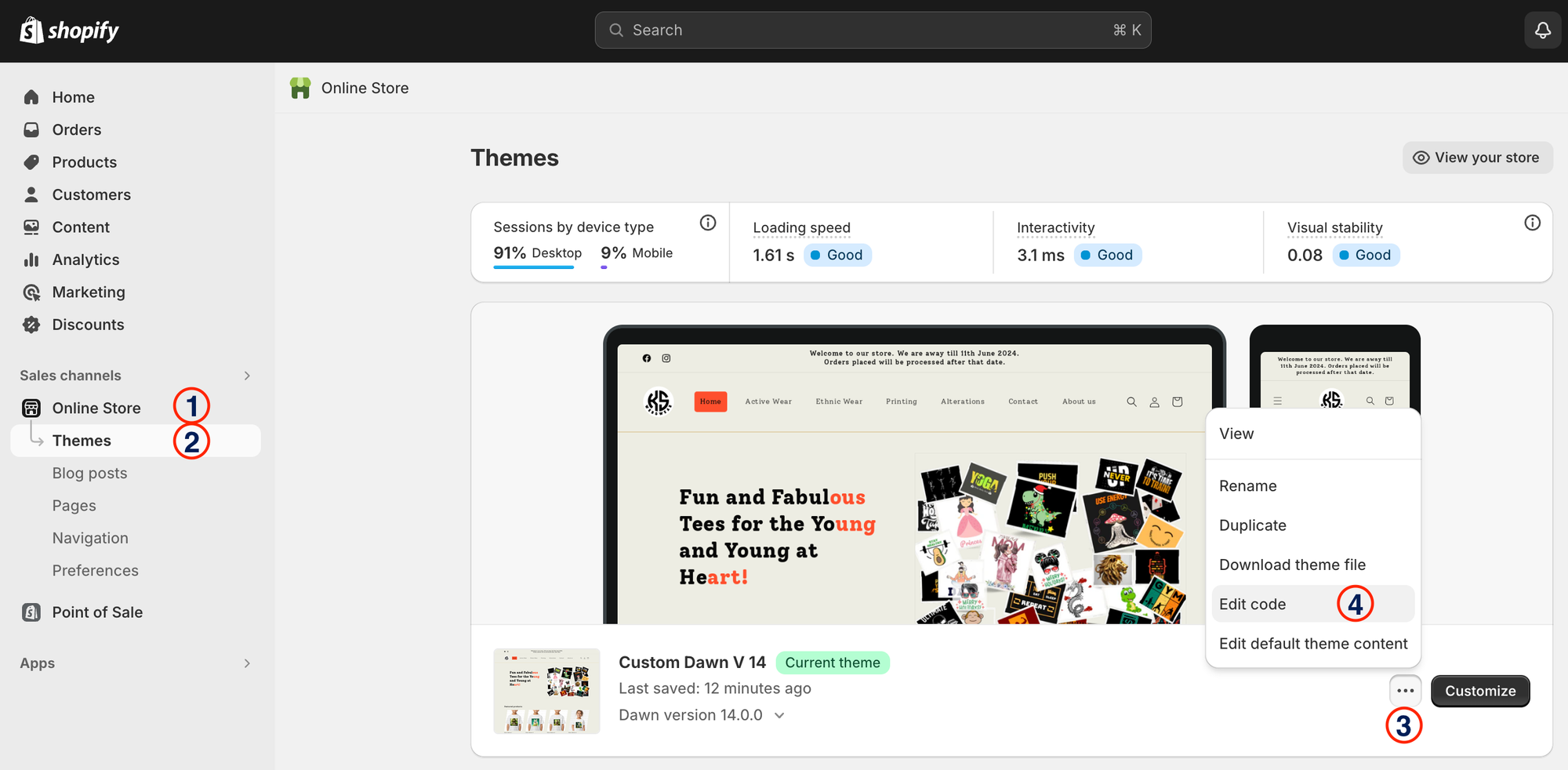
1️⃣ Open your Dawn theme with Edit code:
Go to Online Store -> Themes -> Click 3 dots beside current theme -> edit code
2️⃣ Declare Your Variables:
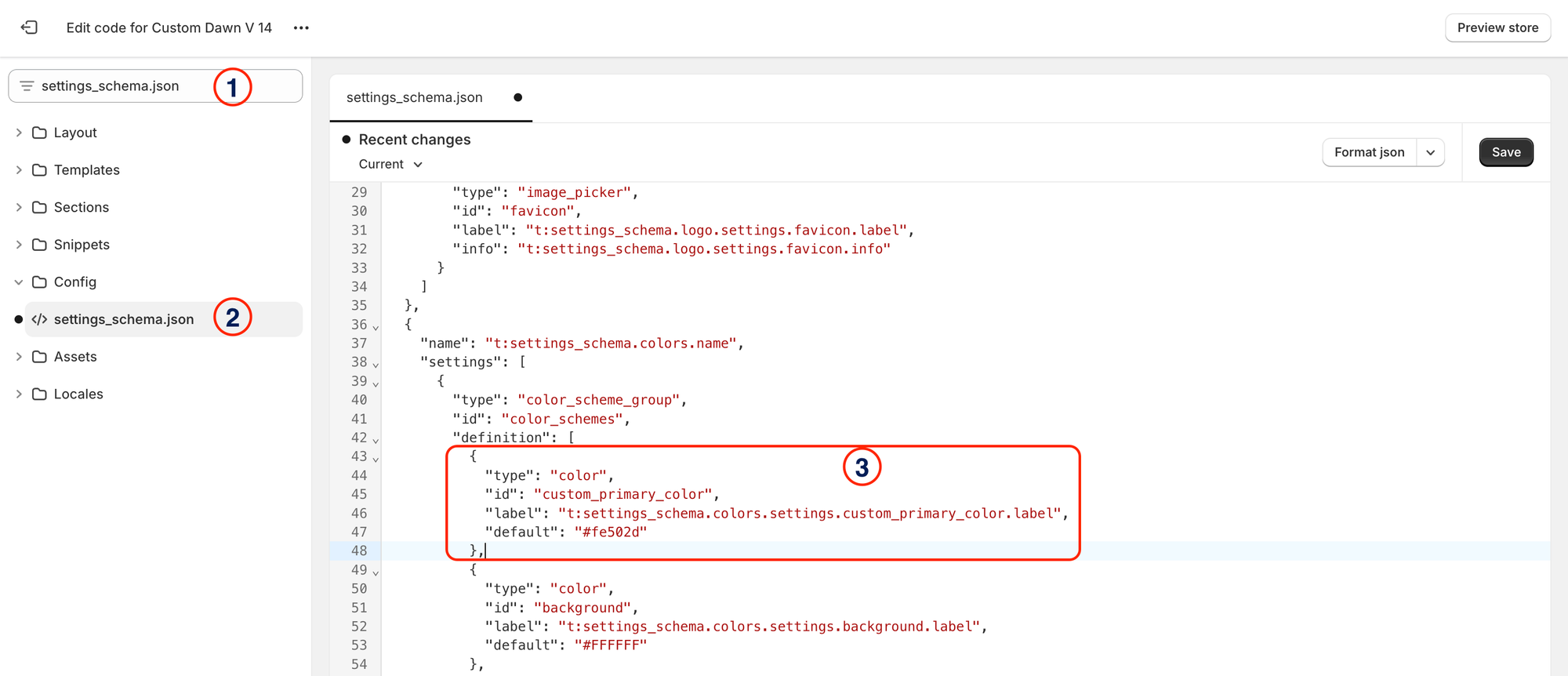
-> In Filter Files search for settings_schema.json
-> Scroll down to the line where you can see "name": "t:settings_schema.colors.name"
-> In that object navigate to definition array and add below object in that array
In the above object -> You can use any value for id it's just for your reference -> You can use any value for label it's just for your reference -> Set the required colour as default value
3️⃣ Reference Variables in Your Styles:
Instead of using fixed values, call your newly declared variables like this:
💡 Note: There are countless ways to achieve the same goal, and this is just one approach that I've followed. 🚀 Feel free to explore other methods and customize your Shopify store's styling to your heart's content! 🌟