#Shopify
Shopify: How to add custom colour variable in Dawn theme and use it
🚀 Optimize Your Shopify Store's CSS with Custom Variables 🎨 Are you using the same CSS values repeatedly across different elements? Instead of hardcoding the...
Today, I'm excited to walk you through the simplest way to add Google Fonts to your Shopify store using Google's CDN. It's super easy, and you'll have your site looking sleek and unique in no time! 🚀
First things first, head over to Google Fonts. Browse through the vast collection of fonts available and choose the one that best fits your brand's vibe. Whether you're looking for something modern, traditional, or quirky, you're sure to find a font that catches your eye!
Example font I chose is "Solway"
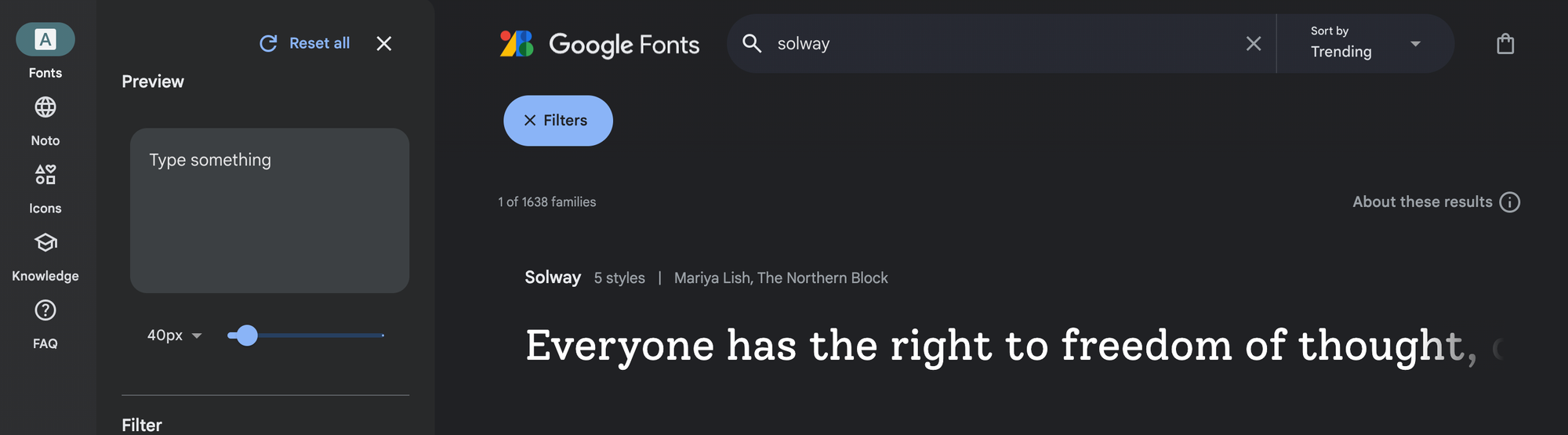
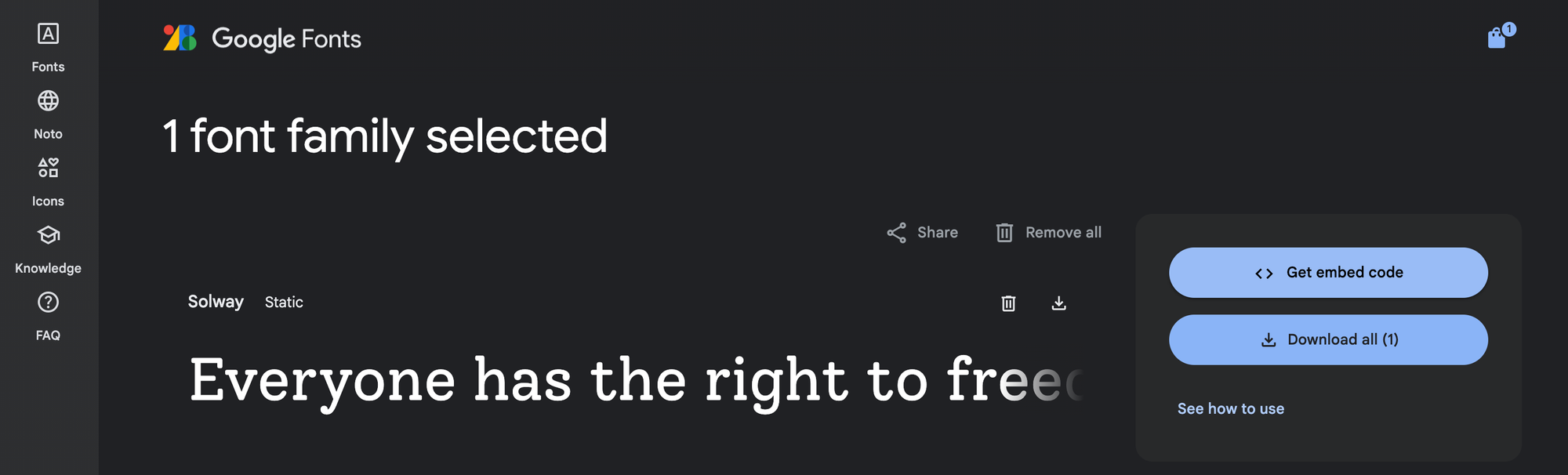
Once you've selected your font, click on "Get font" button located in the top right corner.

Then you'll see an area titled "Embed Font" on the right side of the page. Here, you'll find the link you need to add to your Shopify site. Click on the "@import" tab and copy the code snippet.
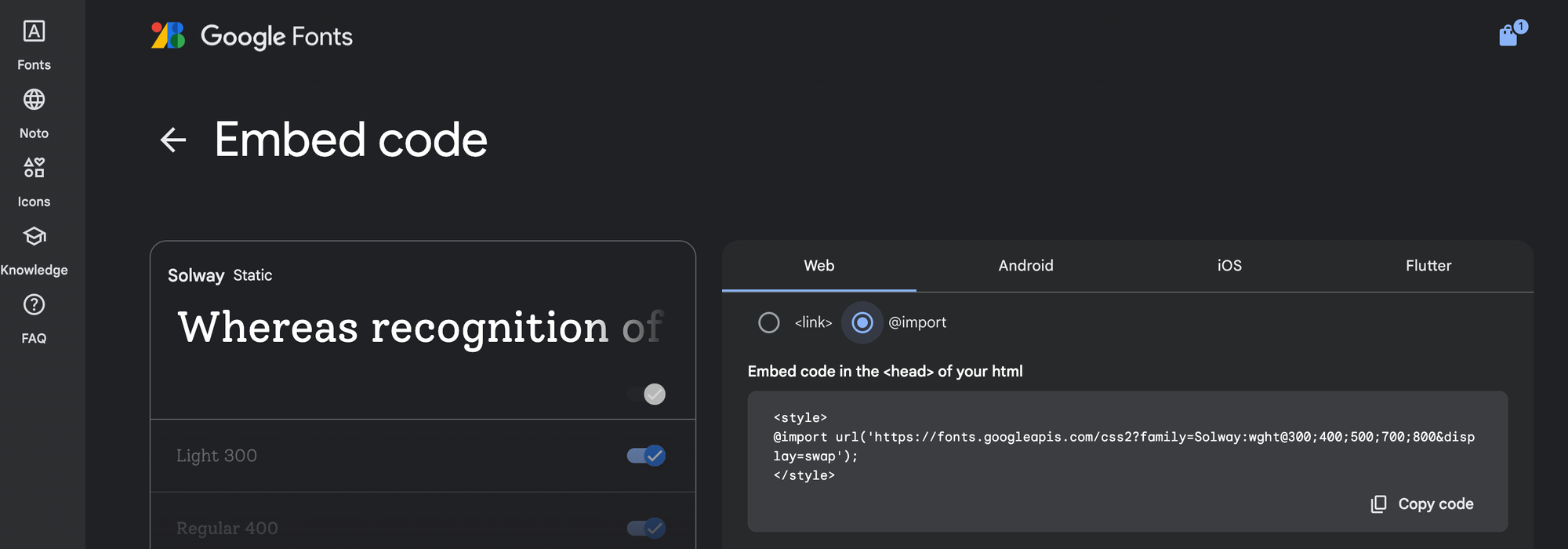
It looks something like this:
<style>);
@import url('https://fonts.googleapis.com/css2?family=Your+Font+Name:wght@400&display=swap'</style>
Make sure to replace "Your Font Name" with the actual name of the font you chose!
Log in to your Shopify admin panel and navigate to "Online Store" > "Themes". Find the theme you want to edit, and click on "Actions" > "Edit code".
Here, you'll need to add the code snippet you copied earlier. The best place to put this is in your theme's theme.liquid file, right before the </head> tag. This ensures that your font loads on every page of your store.
Paste the snippet you copied from Google Fonts into the file, and you're almost done!
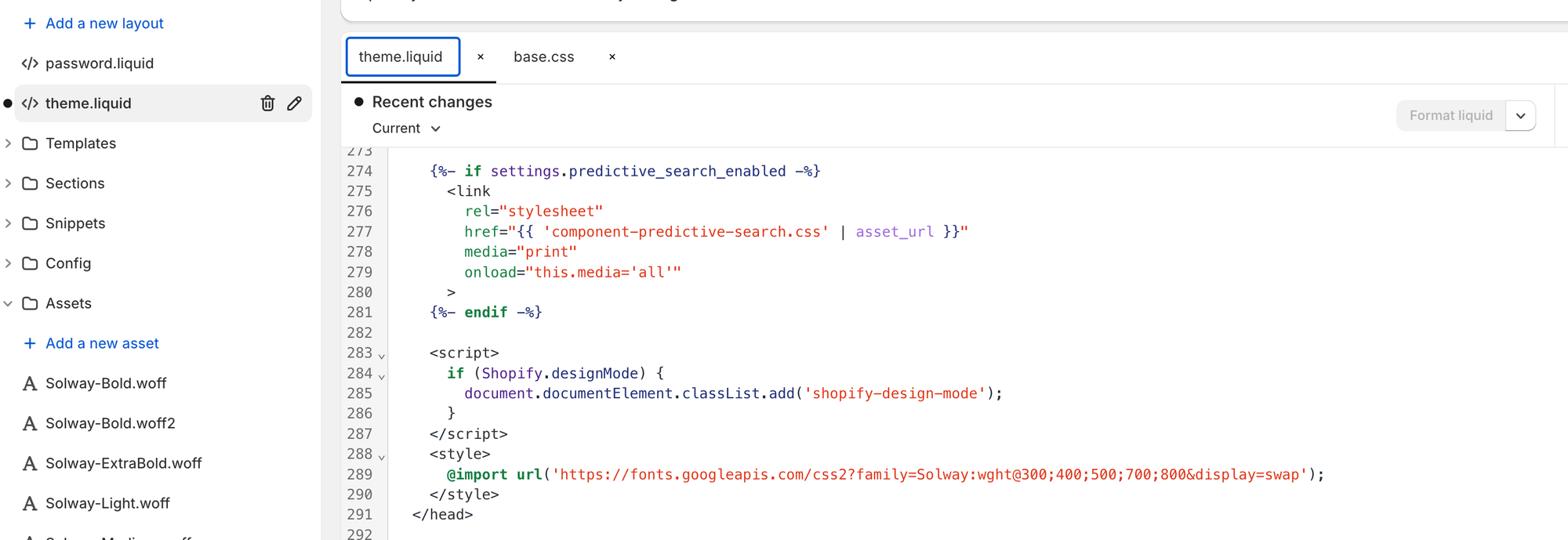
Now that the font is added, you just need to apply it to the elements of your website. Go to the CSS file of your theme, usually named theme.scss.liquid or style.css.liquid.
In my case I'm using Dawn theme, so I used "base.css" to apply the font.
Add the following CSS to apply the font to your entire website or specific elements:
body, h1, h2, h3, p { font-family: 'Your Font Name', sans-serif;
}
Replace 'Your Font Name' with the name of the Google Font you added. You can also specify different elements if you want the font to apply only to certain parts of your site.
Before you make any changes live, always preview your site to see how the new font looks. Shopify offers a handy "Preview" option in the theme editor. If everything looks good, hit "Save", and your changes will be published!
Adding Google Fonts to your Shopify store can significantly enhance its aesthetic and make your brand stand out. With just a few simple steps, you've added a touch of personalisation to your store that can impress and attract more customers.
Written by